Refining the template for your organization
The steps above get you to a clear, donor-ready piece. The guidance below helps you customize the template so it reflects your organization—without overthinking or over-designing.

This guide walks you through the process step by step. No design background required and no pressure to be “good at Canva.”
Open your template in Canva
Log into Canva
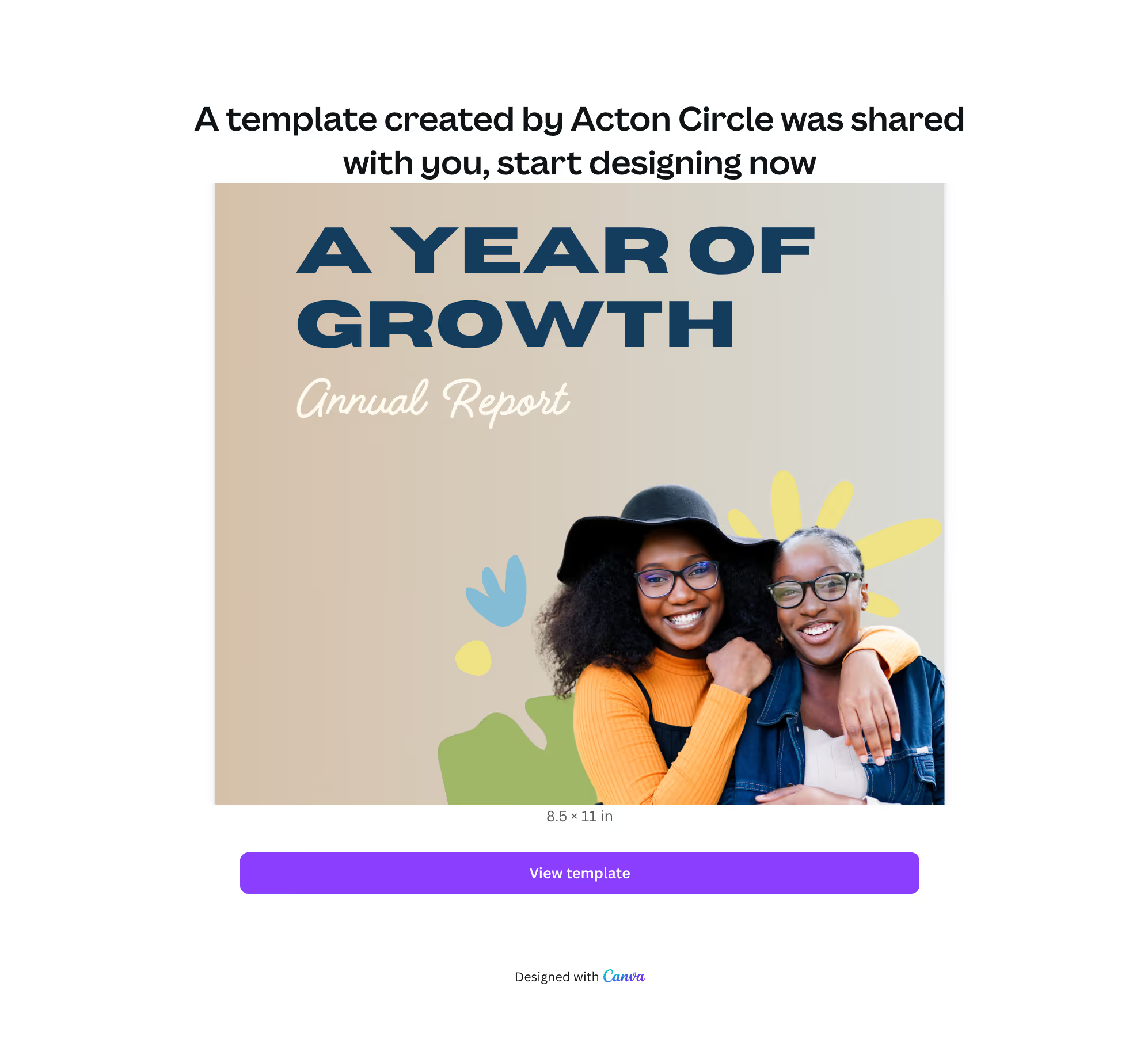
Open your Acton Circle template delivery PDF
Click View template to create your editable copy
If you already use Canva, you’re good to go. If not, we recommend creating a Canva Pro account if you're able to.
Canva offers Canva for Nonprofits, which gives eligible orgs free access to Pro features.
Add your brand basics
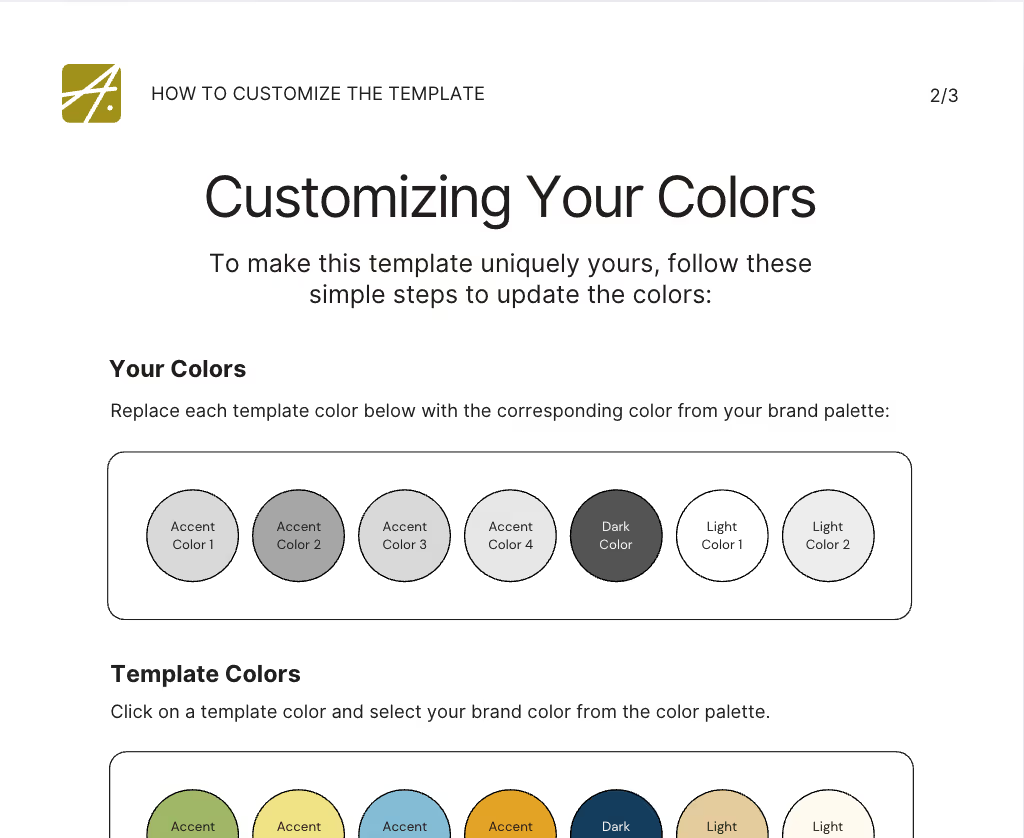
For a quick win, before touching content:
Add your brand colors
Upload your logo
Set fonts (optional, Pro feature)
Your template kit includes a couple of brand setup one-pagers that walks you through swapping colors, fonts, and applying brand styles across the template.
Helpful articles:
https://www.canva.com/help/brand-kits/
https://www.canva.com/help/upload-media/
Swap in your content
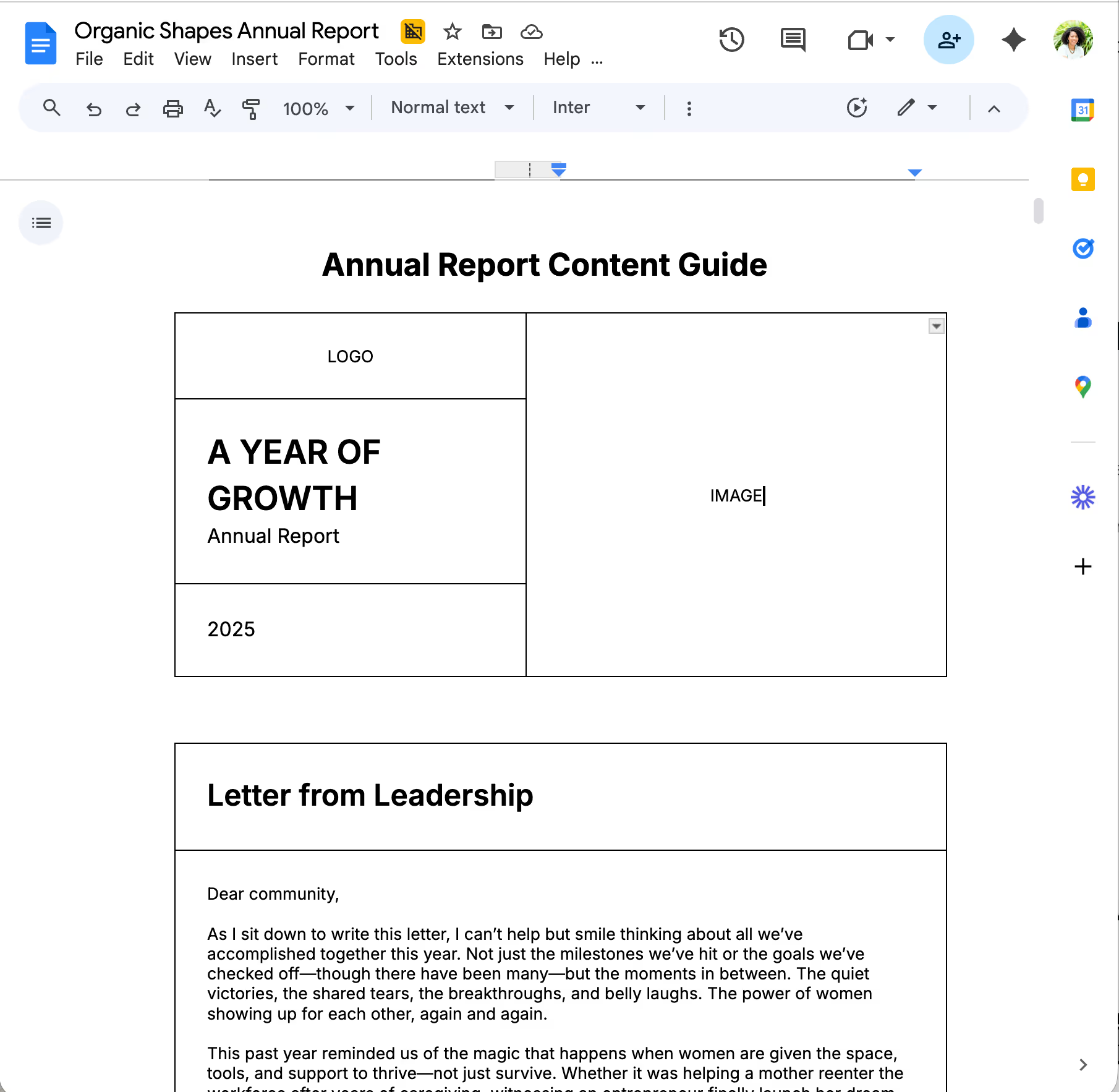
Before pasting anything into Canva, start with the Google Doc content guide included with your purchase (linked in your Annual Report template file). It walks through every copy section so you can write your story before designing.
Once your content is drafted:
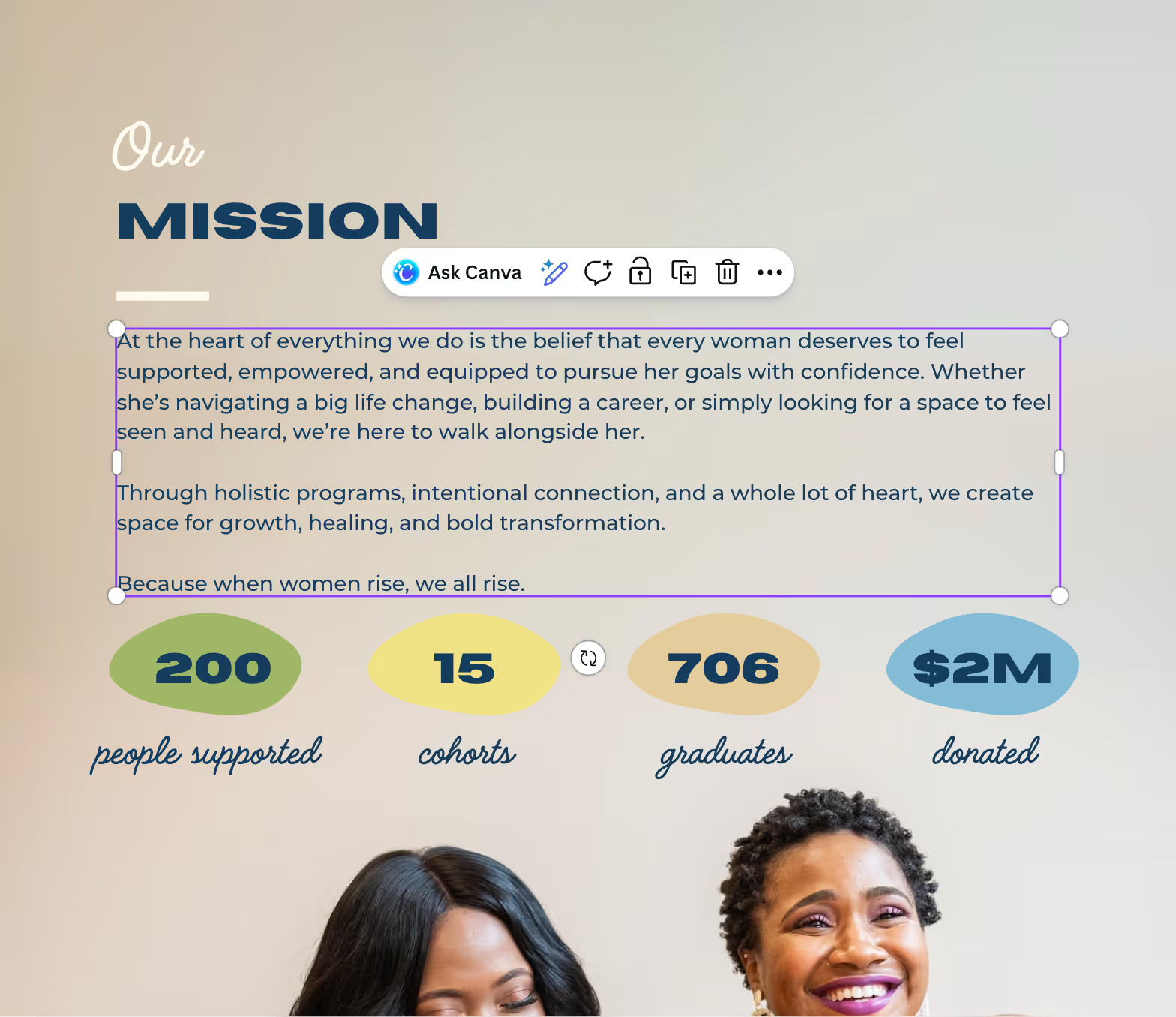
Replace the text and images in existing layouts
Update stats or charts (if included)
If sections feel long, we recommend using ChatGPT or Claude to streamline copy so it fits the layouts better.
Helpful articles:
https://www.canva.com/help/add-images/
https://www.canva.com/help/add-and-edit-text/
https://www.actoncircle.co/blog/prepare-for-your-annual-report
Export + share
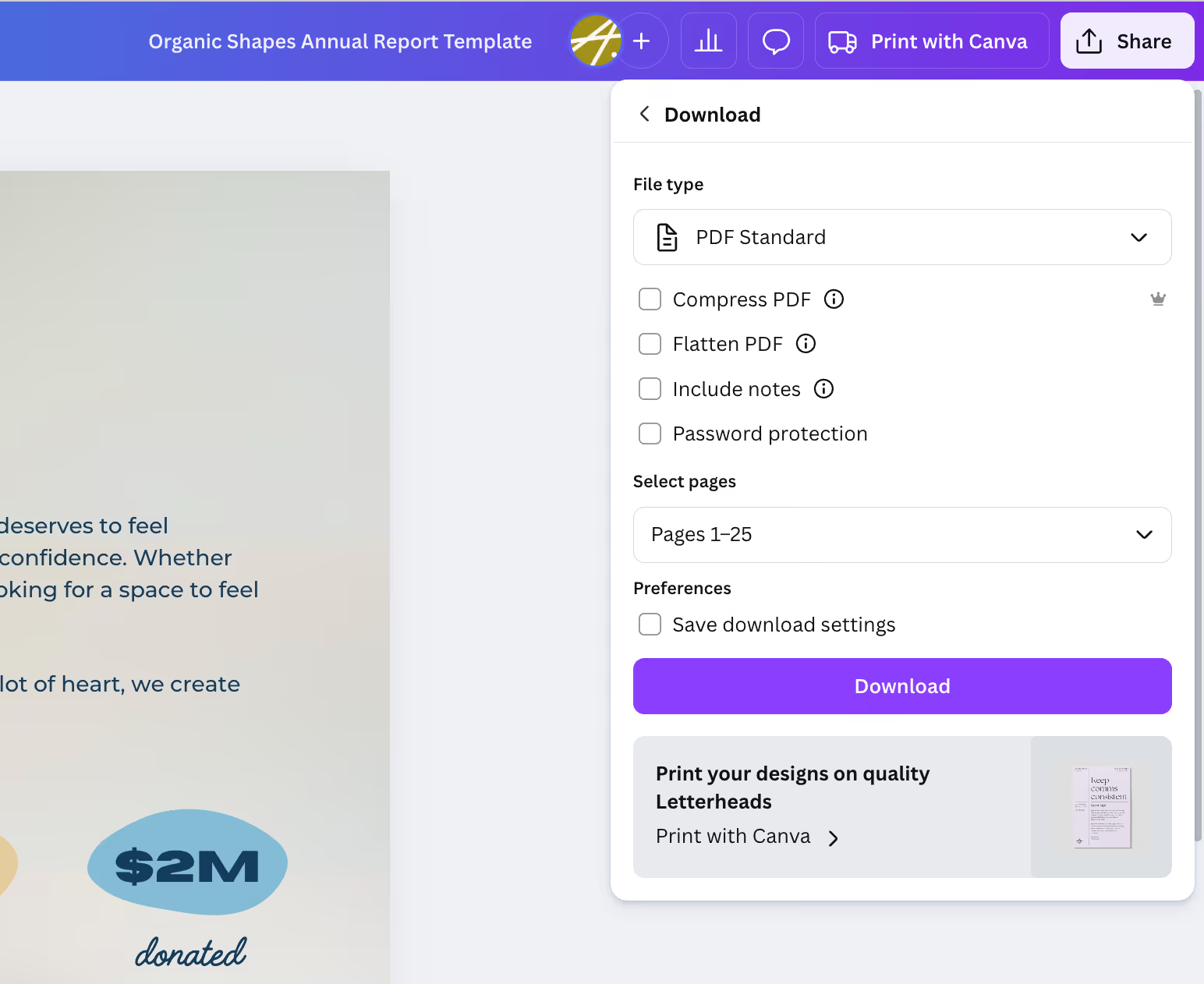
We build your interactive version—either a dedicated landing page or interactive PDF—and deliver all files in every format you need to launch with impact.
PDF Print for printing
PDF Standard for email or web
PNG/JPG for social
Or share via Canva link for review
Helpful articles:
https://www.canva.com/help/download-file-types/
https://www.canva.com/help/proof-designs-print/
The steps above get you to a clear, donor-ready piece. The guidance below helps you customize the template so it reflects your organization—without overthinking or over-designing.
Stay true to the template layout
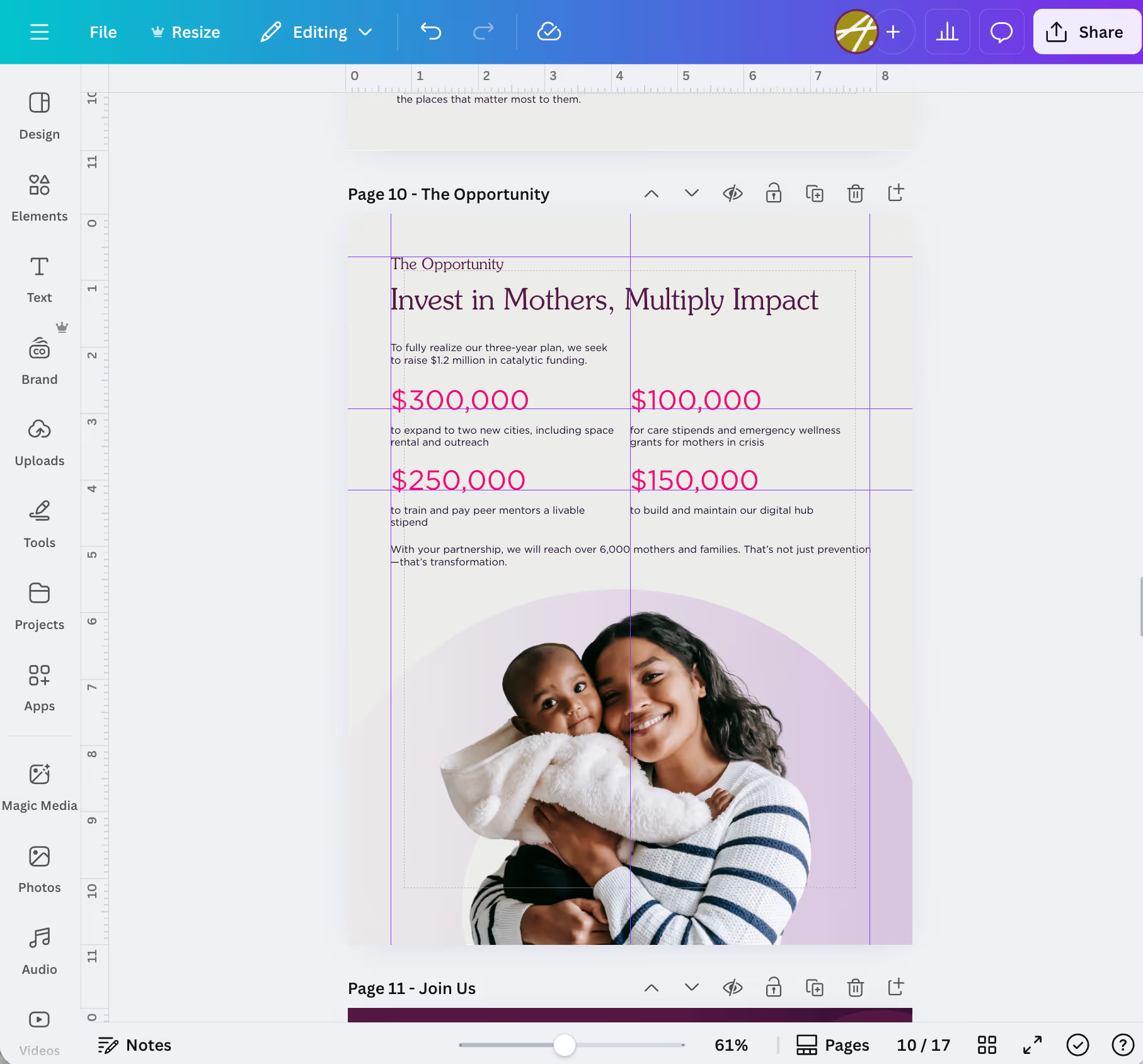
These templates are intentionally structured. The spacing, hierarchy, and flow are doing more work than it might look like at first glance.
As you customize:
Focus on replacing, not redesigning
Keep text within existing text boxes and avoid shrinking type too much. We recommend 10pt or larger to maintain readability and accessibility.
Swap images + icons instead of resizing or rearranging layouts
Keep the open space
If something feels tight, it’s often a cue to trim the copy rather than adjust the design. Use your judgment, but try not to rearrange elements.
The structure is intentional, and sticking to it is what gives the final piece a polished, donor-ready feel.
Write your story before you design
Design works best when the story is clear first. That’s why your purchase includes a Google Doc content guide—so you’re not wondering what to write.
Use the doc to:
Draft your narrative section by section
Decide what deserves its own page
Identify what can be combined or trimmed
Then, when you move into Canva, you’re assembling—not inventing.
Helpful article:
https://www.actoncircle.co/blog/nonprofit-storytelling-in-annual-report-design
Streamlining longer sections
If your draft feels too long for the layout (very common):
Start by shortening headlines
Combine similar points
Cut anything that explains instead of shows
Using Claude to condense copy is encouraged.
Aim for:
Clear, plain language
Fewer words with more meaning
One idea per page or spread
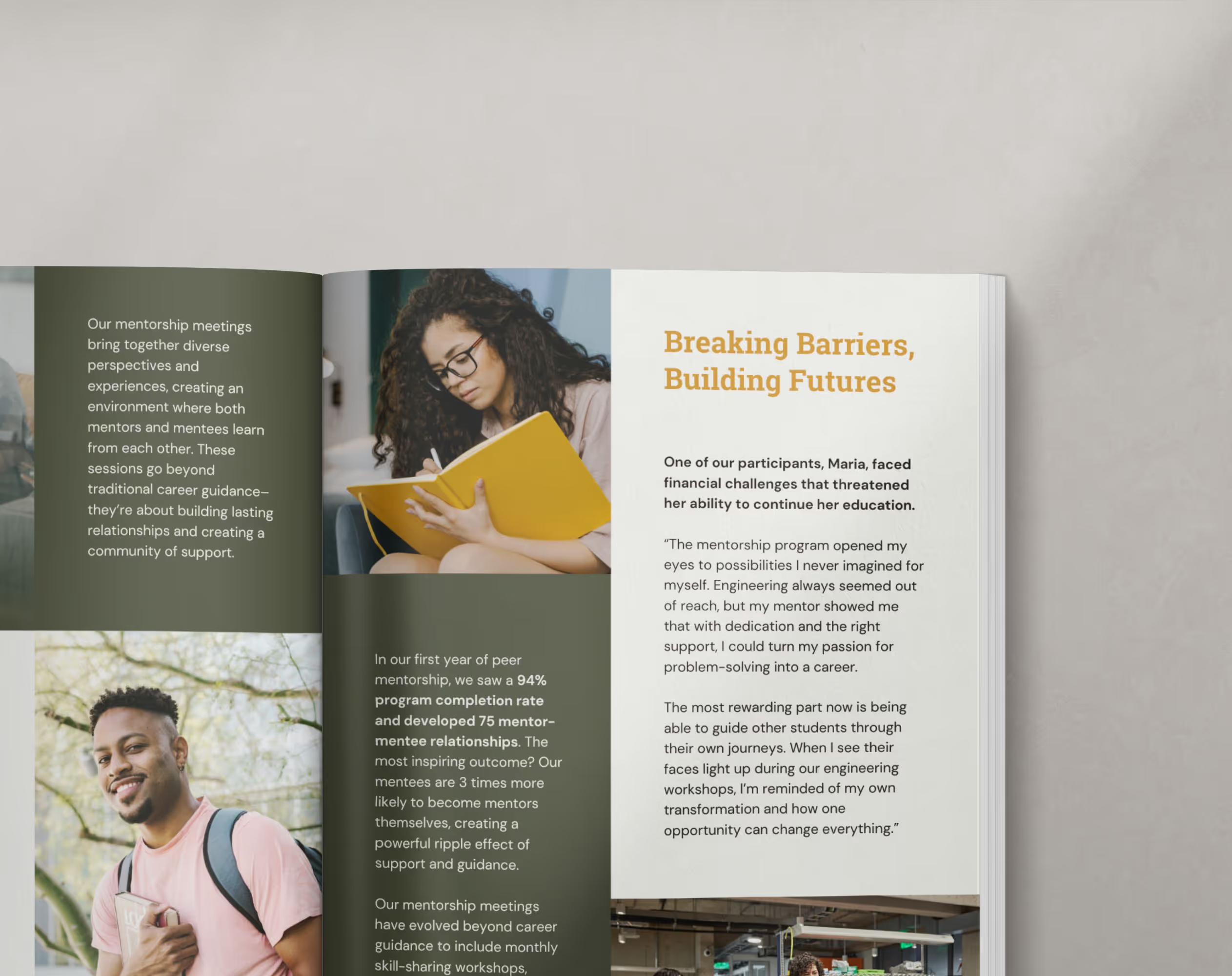
Not every organization has a library of polished, professional photos— that’s okay. You don’t need perfect images for this template to work.
A small set of real photos will always outperform generic stock imagery.
Impact photos to grab before you start
If you’re snapping photos with your phone or pulling from past folders, look for:
People in action (teaching, learning, serving, meeting, supporting)
Candid moments with some posed group shots mixed in
Environment or space photos that show where the work happens
Detail shots (hands at work, materials, signage, tools)
Before / during / after moments, when possible
A note on dignity and consent:
When choosing or capturing photos, prioritize both dignity and consent. Make sure individuals understand how their image may be used and have agreed to it.
Whenever possible, choose images that reflect people as whole, capable participants in their own stories, not just recipients of services.
Helpful article:
https://www.actoncircle.co/blog/inclusive-imagery


A few practical photo tips
Natural light goes a long way—face windows when possible
Hold your phone steady and avoid digital zoom
One strong image per page is usually better than a couple of average ones
If you have Canva Pro, Background Remover can help clean up busy shots
If you do have high-quality photos, use them confidently—just be selective. Fewer, stronger images will make the design feel more intentional and polished.


Design that builds belief in your work. For nonprofits opening doors for those who need it most.